Trips Intelli

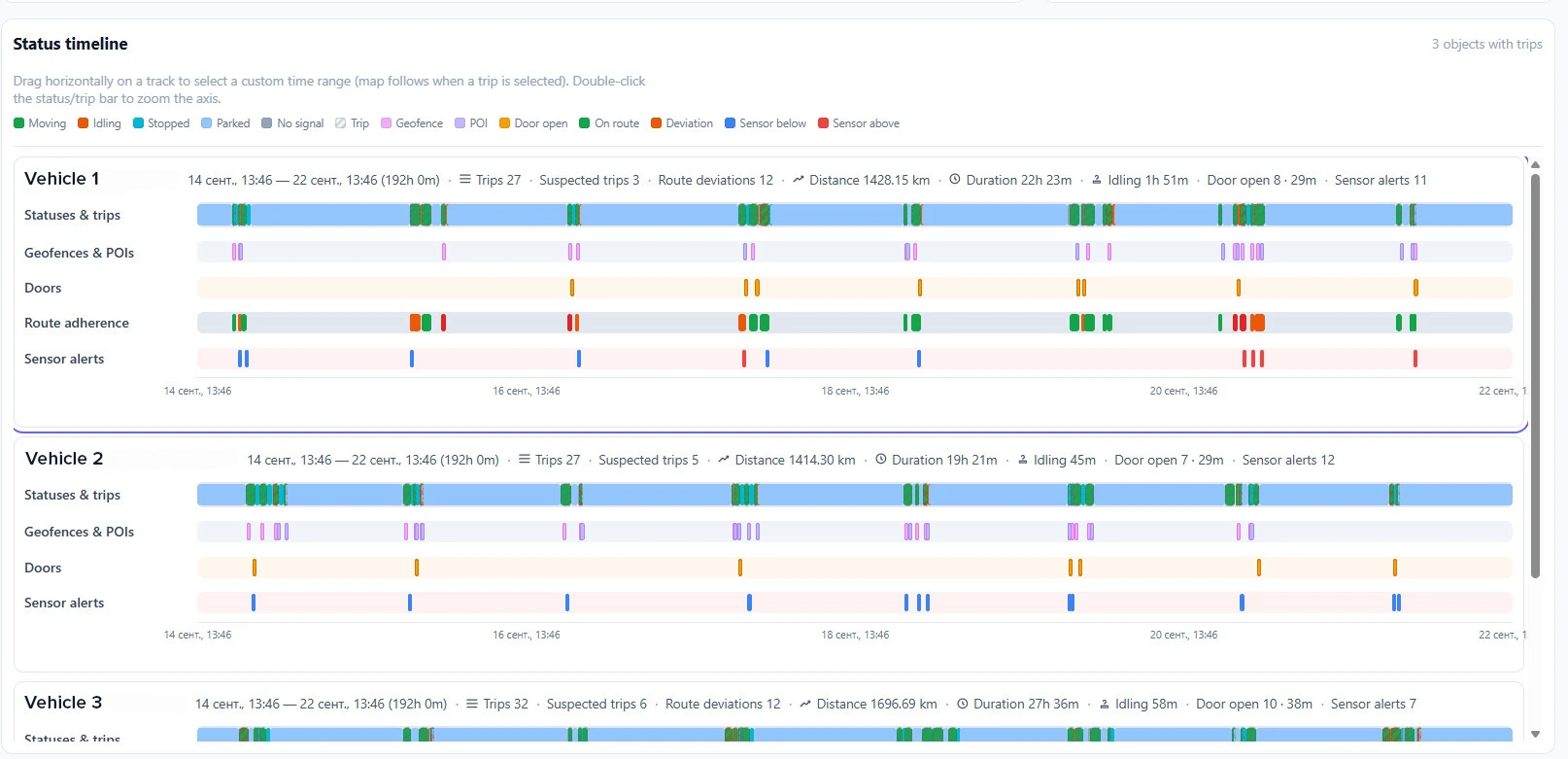
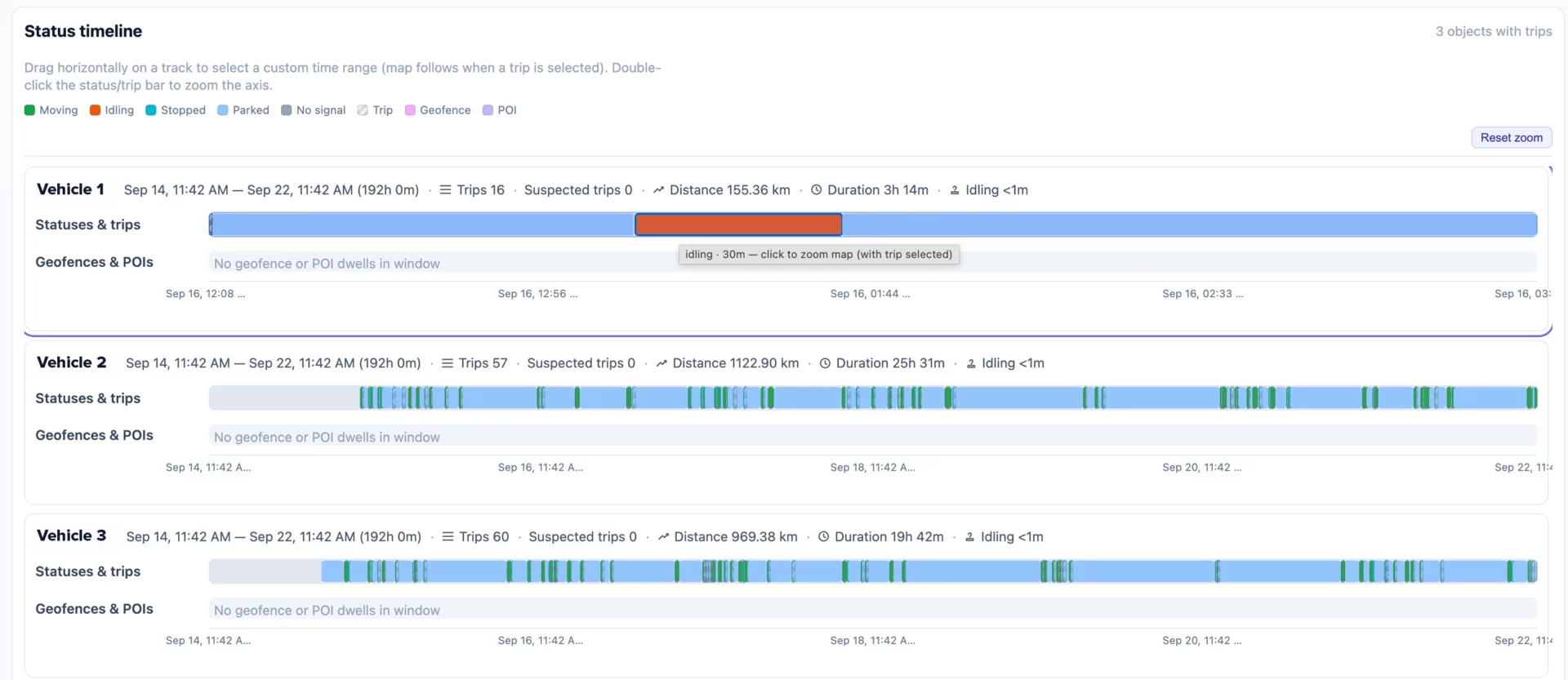
See stops, door openings, sensor alerts, and route deviations of each trip on one timeline.

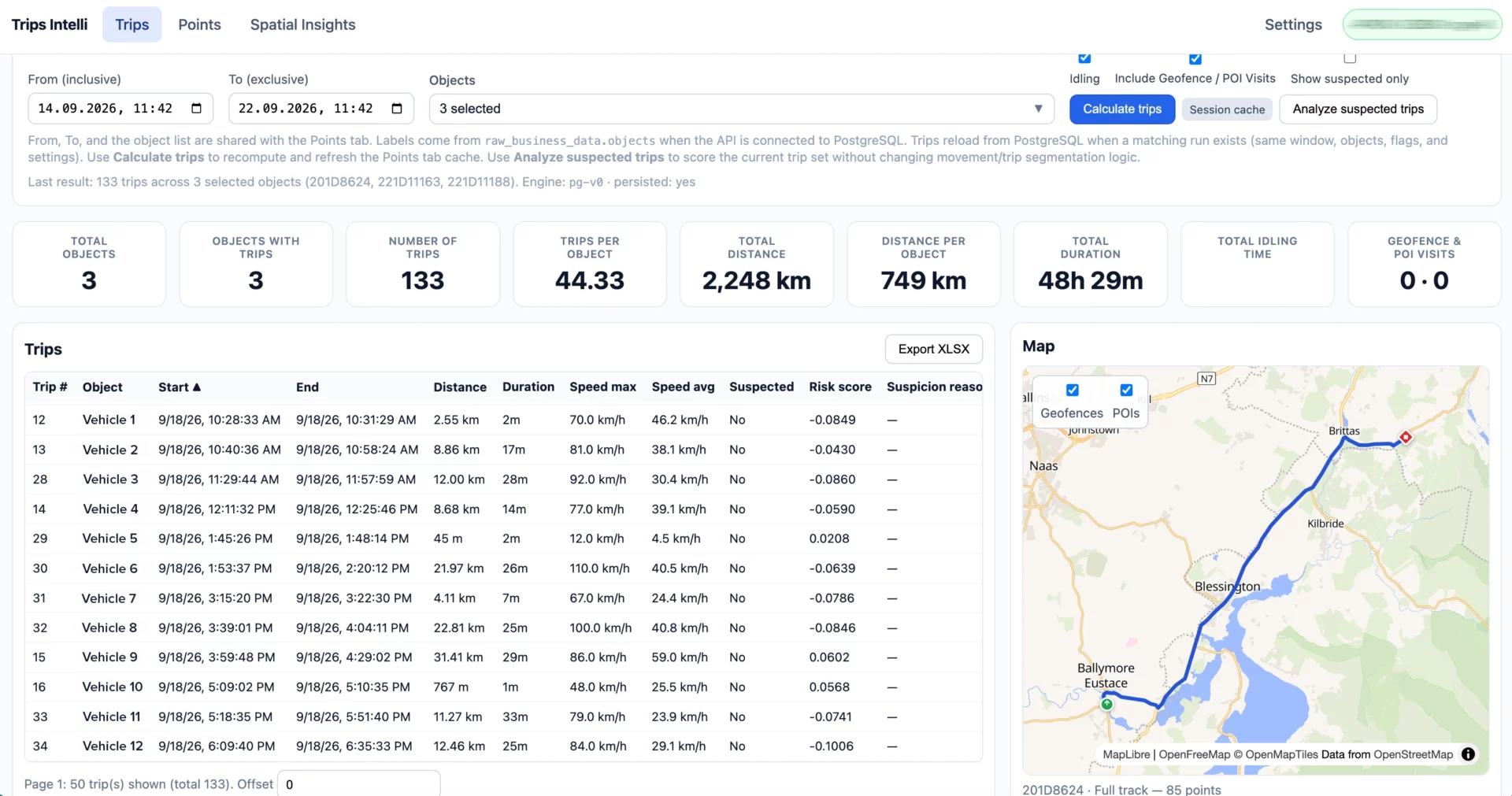
A temperature log with a normal average does not show when the cargo went out of range or what happened at that moment. Trips Intelli is an open-source application that builds trips from your Navixy data in IoT Query, fleet analytics platform, and shows each trip on one timeline with stops, door openings, and sensor readings.

With Trips Intelli, you can:

  • See when the doors were open and when the temperature or fuel level went outside the limits you set.
  • Find route deviations and stops outside known geofences, with the time and place of each one.
  • Find drivers who exceeded the daily driving limit or drove outside shift hours.
  • Review suspected trips first. Each one has a risk score and a reason, such as unusual duration or out-of-shift time.

Dispatchers, fleet managers, and compliance teams use Trips Intelli to investigate incidents and review trips, and they export the results to XLSX. System integrators can change the source code for the needs of their clients. Trips Intelli does not certify compliance and does not decide whether to accept a shipment.

Trips Intelli requires IoT Query access. Contact us to get it.
Before you start, make sure that you have IoT Query access, Python 3.10 or later, and Node.js 20 or later with npm.

1. Install Trips Intelli

  1. Clone the Trips Intelli repository from GitLab.
  2. In the backend/.env file, set DATABASE_URL to your IoT Query connection string.
  3. Run start.sh on Linux or macOS, or start.bat on Windows.
    The script installs the dependencies and starts the application.
  4. In a browser, open http://127.0.0.1:5173.

2. Configure the checks

  1. Open Settings.
  2. To check route deviations, turn on Route deviation enabled.
  3. To monitor temperature or fuel, turn on Sensor thresholds enabled.
  4. Click Refresh sensor list.
  5. For each sensor, enter the Min and Max values.
  6. If you added geofences, POIs, or route corridors in Navixy, click Update Geofences and POIs.
  7. Click Save settings.

3. Calculate trips

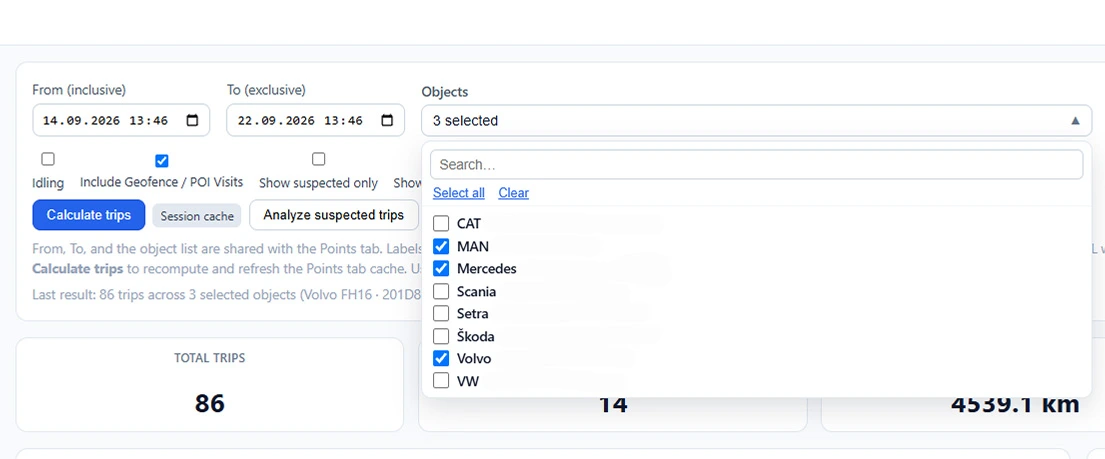
  1. On the Trips screen, select the period and the objects.
  2. Click Calculate trips.
    The Points and Shifts screens show data only after this calculation.
  3. To save the trip table, click Export XLSX.

For details, see the README file in the Trips Intelli repository and Connection setup in the IoT Query documentation.

Configuration level

User

Developer

Navixy

Price

Free of charge